[简体中文](README.md) | English

## Introduction



Video-subtitle-extractor (VSE) is a software that extracts hard-coded subtitles from videos into external subtitle files (SRT format).
Key features:
- Extract key frames from videos
- Detect text positions in video frames
- Recognize text content in video frames
- Filter out non-subtitle text regions
- [Remove watermarks, channel logos, and original hard-coded subtitles — use with: video-subtitle-remover (VSR)](https://github.com/YaoFANGUK/video-subtitle-remover/tree/main)
- Remove duplicate subtitle lines and generate SRT subtitle files / TXT text files
- Support **batch extraction** of video subtitles
- Multi-language: supports subtitle extraction in **87 languages**, including **Simplified Chinese (Chinese-English bilingual)**, **Traditional Chinese**, **English**, **Japanese**, **Korean**, **Vietnamese**, **Arabic**, **French**, **German**, **Russian**, **Spanish**, **Portuguese**, **Italian**, and more
- Multiple modes:
- **Fast**: (Recommended) Uses a lightweight model for quick subtitle extraction. May miss a small number of subtitles and have minor typos.
- **Auto**: (Recommended) Automatically selects the model — uses the lightweight model on CPU and the precise model on GPU. Slower extraction speed, may miss a small number of subtitles, but with almost no typos.
- **Precise**: (Not recommended) Uses the precise model with frame-by-frame detection on GPU. No missed subtitles and almost no typos, but **very slow**.
> Please use Fast/Auto mode first. Only switch to Precise mode if the first two modes miss too many subtitle lines.
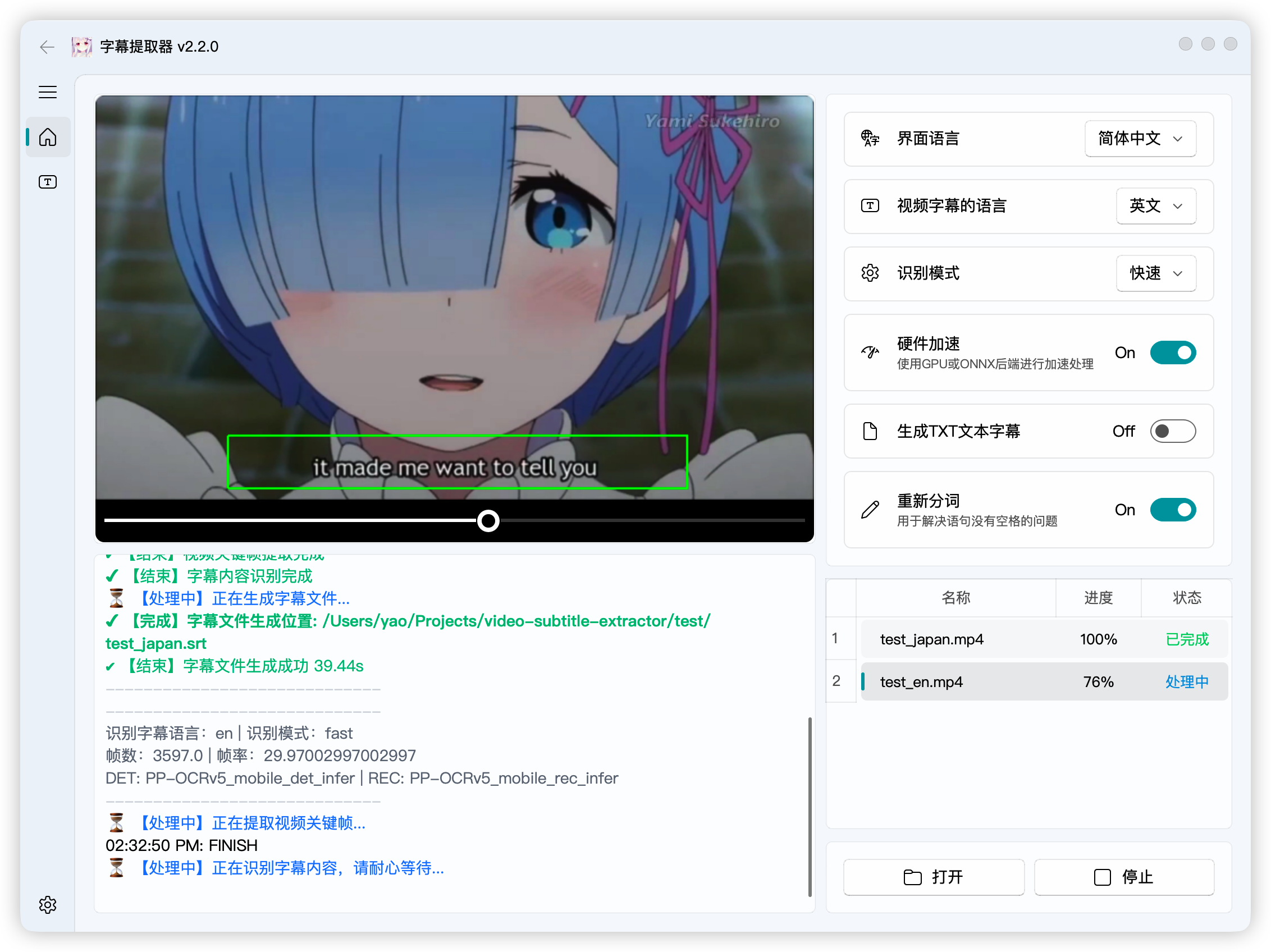
**Highlights**:
- Uses local OCR recognition — no need to configure any API or connect to online OCR services such as Baidu or Alibaba
- Supports GPU acceleration for higher accuracy and faster extraction speed
**Usage Guide**:
- For questions, please join the discussion group (QQ Group): 210150985 (full), 806152575 (full), 816881808 (full), 295894827
- Click [Open] to select video files, adjust the subtitle area, then click [Run]
- Single file extraction: Select **one** video file when opening
- **Batch extraction**: Select **multiple** video files when opening. Ensure all videos have the same resolution and subtitle area
- Remove watermark text / Replace specific text:
> If specific text appears in the video that needs to be removed or replaced, edit the ``backend/configs/typoMap.json`` file and add your replacements
```json
{
"l'm": "I'm",
"l just": "I just",
"Let'sqo": "Let's go",
"Iife": "life",
"威筋": "威胁",
"性感荷官在线发牌": ""
}
```
> This will replace all occurrences of "威筋" with "威胁" and delete all "性感荷官在线发牌" text
- Please **do not use Chinese characters or spaces** in video and program paths, otherwise unexpected errors may occur!!!
> For example, the following paths are NOT acceptable:
>
> D:\下载\vse\运行程序.exe (path contains Chinese characters)
>
> E:\study\kaoyan\sanshang youya.mp4 (path contains spaces)
- Download the compressed package, extract it, and run directly. If it doesn't work, try the source code installation with conda environment as described below.
**Download**: Release
> **Please submit any improvement suggestions in ISSUES and DISCUSSIONS**
> NVIDIA provides a list of compute capabilities for each GPU model. You can refer to [CUDA GPUs](https://developer.nvidia.com/cuda-gpus) to check which CUDA version is suitable for your GPU.
> NVIDIA 50-series GPUs require CUDA 12.8.0 or above, but Paddle 3.3.1 does not yet support it, so the DirectML universal version is recommended.
**Recognition Mode Selection**:
| Mode | GPU | OCR Model Size | Subtitle Detection Engine | Notes |
|------|-----|----------------|---------------------------|-------|
| Fast | Yes/No | Mini | VideoSubFinder | |
| Auto | Yes | Large | VideoSubFinder | Recommended |
| Auto | No | Mini | VideoSubFinder | Recommended |
| Precise | Yes/No | Large | VSE | Very slow |
> VideoSubFinder is the subtitle detection engine on Windows/Linux/macOS.
## Demo
- GUI version: [Click to view GPU version source code installation tutorial](https://www.bilibili.com/video/bv11L4y1Y7Tj)

## Source Code Usage Guide
#### 1. Install Python
Make sure you have Python 3.12+ installed.
- Windows users can download and install Python from the [Python official website](https://www.python.org/downloads/windows/)
- MacOS users can install via Homebrew:
```shell
brew install python@3.12
```
- Linux users can install via package manager, e.g. Ubuntu/Debian:
```shell
sudo apt update && sudo apt install python3.12 python3.12-venv python3.12-dev
```
#### 2. Install Dependencies
Use a virtual environment to manage project dependencies and avoid conflicts with the system environment.
(1) Create and activate a virtual environment
```shell
python -m venv videoEnv
```
- Windows:
```shell
videoEnv\\Scripts\\activate
```
- MacOS/Linux:
```shell
source videoEnv/bin/activate
```
#### 3. Navigate to the Project Directory
Switch to the source code directory:
```shell
cd
```
> For example: if your source code is in the tools folder on drive D, and the source code folder is named video-subtitle-extractor, enter:
> ```shell
> cd D:/tools/video-subtitle-extractor-main
> ```
#### 4. Install the Appropriate Runtime Environment
This project supports four runtime modes: CUDA (NVIDIA GPU acceleration), CPU (no GPU), DirectML (AMD, Intel GPU/APU acceleration), and ONNX.
##### (1) CUDA (NVIDIA GPU Users)
> Please ensure your NVIDIA GPU driver supports the selected CUDA version.
- Recommended: CUDA 11.8 with cuDNN 8.6.0
- Install CUDA:
- Windows: [CUDA 11.8 Download](https://developer.download.nvidia.com/compute/cuda/11.8.0/local_installers/cuda_11.8.0_522.06_windows.exe)
- Linux:
```shell
wget https://developer.download.nvidia.com/compute/cuda/11.8.0/local_installers/cuda_11.8.0_520.61.05_linux.run
sudo sh cuda_11.8.0_520.61.05_linux.run
```
- MacOS does not support CUDA
- Install cuDNN (CUDA 11.8 requires cuDNN 8.6.0):
- [Windows cuDNN 8.6.0 Download](https://developer.download.nvidia.cn/compute/redist/cudnn/v8.6.0/local_installers/11.8/cudnn-windows-x86_64-8.6.0.163_cuda11-archive.zip)
- [Linux cuDNN 8.6.0 Download](https://developer.download.nvidia.cn/compute/redist/cudnn/v8.6.0/local_installers/11.8/cudnn-linux-x86_64-8.6.0.163_cuda11-archive.tar.xz)
- Please refer to NVIDIA official documentation for installation instructions
- Install PaddlePaddle GPU version (CUDA 11.8):
```shell
pip install paddlepaddle-gpu==3.3.1 -i https://www.paddlepaddle.org.cn/packages/stable/cu118/
pip install -r requirements.txt
```
##### (2) DirectML (AMD, Intel GPU/APU Users)
- Suitable for AMD/NVIDIA/Intel GPUs on Windows
- Install ONNX Runtime DirectML version:
```shell
pip install paddlepaddle==3.3.1 -i https://www.paddlepaddle.org.cn/packages/stable/cpu/
pip install -r requirements.txt
pip install -r requirements_directml.txt
```
##### (3) ONNX (For macOS, AMD ROCm, etc. — uses the same base setup as DirectML, untested!)
- Please do not submit issues if using this deployment method
- Suitable for AMD/Metal GPU/Apple Silicon GPU on Linux or macOS
- Install ONNX Runtime:
```shell
pip install paddlepaddle==3.3.1 -i https://www.paddlepaddle.org.cn/packages/stable/cpu/
pip install -r requirements.txt
# Read the documentation at https://onnxruntime.ai/docs/execution-providers/
# Choose the appropriate execution backend for your device.
# Refer to requirements_directml.txt and modify the dependencies for your environment.
# For example:
# requirements_coreml.txt
# paddle2onnx==1.3.1
# onnxruntime-coreml==1.13.1
pip install -r requirements_coreml.txt
```
##### (4) CPU Mode (No GPU Acceleration)
- Suitable for systems without a GPU or when GPU usage is not desired
- Install the CPU version of PaddlePaddle directly:
```shell
pip install paddlepaddle==3.3.1 -i https://www.paddlepaddle.org.cn/packages/stable/cpu/
pip install -r requirements.txt
```
#### 5. Run the Program
- Run the GUI version:
```shell
python gui.py
```
- Run the CLI version:
```shell
python ./backend/main.py
```
## FAQ
#### 1. Program not working / no results / CUDA and cuDNN issues
Solution: Install the appropriate CUDA and cuDNN versions based on your GPU model and driver version.
#### 2. 7z file extraction error
Solution: Upgrade 7-Zip to the latest version.
## Sponsor
