 Matthew Breedlove
497b30e0bf
Matthew Breedlove
497b30e0bf
12 KiB
Usage
Usage documentation for ccstatusline.
If you want the main project overview, return to README.md.
Once configured, ccstatusline automatically formats your Claude Code status line. The status line appears at the bottom of your terminal during Claude Code sessions.
Runtime Modes
- Interactive mode (TUI): Launches when there is no stdin input
- Piped mode (renderer): Parses Claude Code status JSON from stdin and prints one or more formatted lines
# Interactive TUI
bun run start

# Piped mode with example payload
bun run example
Available Widgets
Claude & Session
- Model / Output Style / Version - Show the active Claude model, output style, and Claude Code CLI version.
- Claude Session ID / Session Name / Claude Account Email - Show session identifiers plus the currently signed-in Claude account email.
- Thinking Effort / Vim Mode / Skills - Show Claude thinking effort, the current vim editing mode, and skill activity from hook data.
- Session Clock / Session Cost - Show elapsed session time and the current session cost in USD.
Git
- Git Branch / Git Root Dir / Git PR - Show the current branch, repository root directory, and PR details for the current branch with optional links.
- Git Changes / Git Insertions / Git Deletions - Show aggregate file-change counts and dedicated insertion/deletion counts.
- Git Status / Git Staged / Git Unstaged / Git Untracked / Git Ahead/Behind / Git Conflicts / Git SHA - Show compact repo-state indicators, upstream divergence, merge-conflict count, and the current short commit SHA.
- Git Origin Owner / Git Origin Repo / Git Origin Owner/Repo - Show parsed
originremote metadata. - Git Upstream Owner / Git Upstream Repo / Git Upstream Owner/Repo / Git Is Fork - Show upstream remote metadata and whether the current repo is a fork.
- Git Worktree / Git Worktree Mode / Git Worktree Name / Git Worktree Branch / Git Worktree Original Branch - Show worktree status plus the active worktree's name and branch metadata.
Tokens, Usage & Context
- Tokens Input / Tokens Output / Tokens Cached / Tokens Total - Show current-session token counts.
- Input Speed / Output Speed / Total Speed - Show session-average token throughput with an optional per-widget rolling window (
0-120seconds;0= full-session average). - Context Length / Context % / Context % (usable) / Context Bar - Show model context size, usage percentage, usable-window percentage, or a progress bar.
- Session Usage / Weekly Usage / Block Timer / Block Reset Timer / Weekly Reset Timer - Show usage percentages plus current block/reset timing.
Environment, Layout & Custom
- Current Working Dir / Terminal Width / Memory Usage - Show the current working directory, detected terminal width, and system memory usage.
- Custom Text / Custom Symbol / Custom Command / Link - Add user-defined text, a single symbol or emoji, custom command output, or a clickable OSC 8 hyperlink.
- Separator / Flex Separator - Add a manual divider or a width-filling flexible spacer (available when Powerline mode is off).
Terminal Width Options
These settings affect where long lines are truncated, and where right-alignment occurs when using flex separators:
- Full width always - Uses full terminal width (may wrap if auto-compact message appears or IDE integration adds text)
- Full width minus 40 - Reserves 40 characters for auto-compact message to prevent wrapping (default)
- Full width until compact - Dynamically switches between full width and minus 40 based on context percentage threshold (configurable, default 60%)
Global Options
Configure global formatting preferences that apply to all widgets:
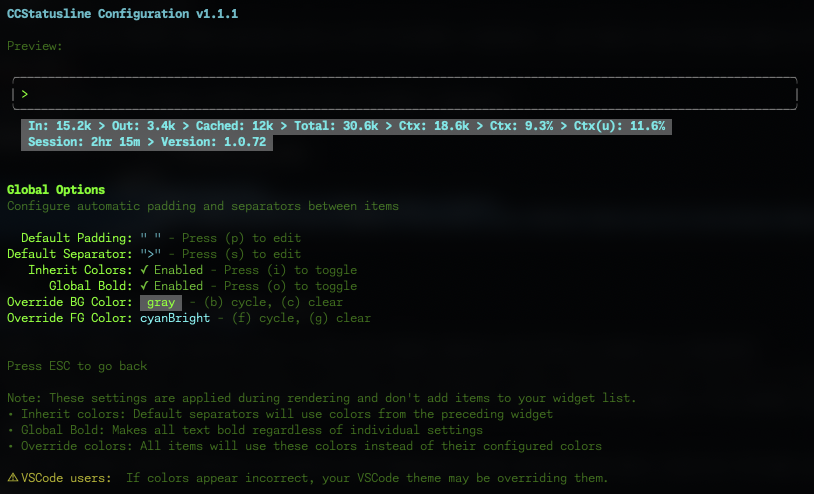
Default Padding & Separators
- Default Padding - Add consistent padding to the left and right of each widget
- Default Separator - Automatically insert a separator between all widgets
- Press (p) to edit padding
- Press (s) to edit separator
Global Formatting Options
- Inherit Colors - Default separators inherit foreground and background colors from the preceding widget
- Press (i) to toggle
- Global Bold - Apply bold formatting to all text regardless of individual widget settings
- Press (o) to toggle
- Minimalist Mode - Force widgets into raw-value rendering globally for a cleaner, label-free status line
- Press (m) to toggle
- Override Foreground Color - Force all widgets to use the same text color
- Press (f) to cycle through colors
- Press (g) to clear override
- Override Background Color - Force all widgets to use the same background color
- Press (b) to cycle through colors
- Press (c) to clear override
💡 Note: These settings are applied during rendering and don't add widgets to your widget list. They provide a consistent look across your entire status line without modifying individual widget configurations.
⚠️ VSCode Users: If colors appear incorrect in the VSCode integrated terminal, the "Terminal › Integrated: Minimum Contrast Ratio" (
terminal.integrated.minimumContrastRatio) setting is forcing a minimum contrast between foreground and background colors. You can adjust this setting to 1 to disable the contrast enforcement, or use a standalone terminal for accurate colors.
Block Timer Widget
The Block Timer widget helps you track your progress through Claude Code's 5-hour conversation blocks:
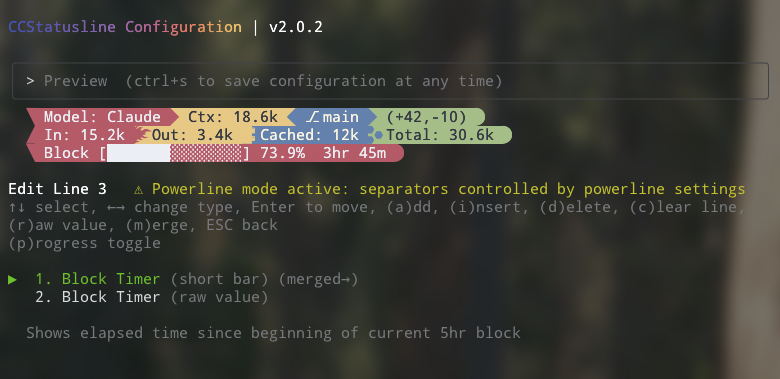
Display Modes:
- Time Display - Shows elapsed time as "3hr 45m" (default)
- Progress Bar - Full width 32-character progress bar with percentage
- Progress Bar (Short) - Compact 16-character progress bar with percentage
Features:
- Automatically detects block boundaries from transcript timestamps
- Floors block start time to the hour for consistent tracking
- Shows "Block: 3hr 45m" in normal mode or just "3hr 45m" in raw value mode
- Progress bars show completion percentage (e.g., "[████████████████████████░░░░░░░░] 73.9%")
- Use (p) to cycle time/full bar/short bar, (s) for compact time mode, and (v) to invert fill in progress mode
Raw Value Mode
Some widgets support "raw value" mode which displays just the value without a label:
- Normal:
Model: Claude 3.5 Sonnet→ Raw:Claude 3.5 Sonnet - Normal:
Session: 2hr 15m→ Raw:2hr 15m - Normal:
Block: 3hr 45m→ Raw:3hr 45m - Normal:
Ctx: 18.6k→ Raw:18.6k
Widget Editor Keybinds
Common controls in the line editor:
↑/↓select widget←/→open the type picker for the selected widgetaadd widget via the pickeriinsert widget via the pickerEnterenter/exit move modeddelete selected widgetcclear the current lineSpacecycle a manual separator characterrtoggle raw value (supported widgets)mcycle merge mode (off→merge→merge no padding)Escgo back
Widget picker:
- type to search categories and widgets
- supports substring, initialism, and fuzzy matching
↑/↓change selection,Entercontinue/apply,Escclear search/back/cancel
The keybind footer in the TUI only shows shortcuts that apply to the currently selected widget.
Widget-specific shortcuts:
- Git widgets with empty-state toggles:
hhideno git/ empty output where supported - Git Branch:
ltoggle clickable GitHub branch links - Git Root Dir:
lcycle IDE links (off→VS Code→Cursor) - Git PR:
hhide empty/no-PR output,stoggle review status,ttoggle title - Git remote widgets (
Git Origin*/Git Upstream*):hhide when no remote,ltoggle clickable repo links - Git Origin Owner/Repo:
oshow only the owner when the repo is a fork - Git Is Fork:
hhide when the repo is not a fork - Context % widgets:
utoggle used vs remaining display - Session Usage / Weekly Usage:
pcycle percentage/full bar/short bar,vinvert fill in progress mode - Block Timer / Block Reset Timer:
pcycle time/full bar/short bar,stoggle compact time,vinvert fill in progress mode - Weekly Reset Timer:
pcycle time/full bar/short bar,stoggle compact time,htoggle hours-only,vinvert fill in progress mode - Context Bar:
ptoggle full-width vs short progress bar - Current Working Dir:
hhome abbreviation,ssegment editor,ffish-style path - Skills:
vcycle view mode,hhide when empty,ledit list limit in list mode - Input Speed / Output Speed / Total Speed:
wedit the rolling window in seconds - Custom Text / Custom Symbol:
eedit text or symbol - Custom Command:
ecommand,wmax width,ttimeout,ppreserve ANSI colors - Link:
uURL,elink text - Vim Mode:
fcycle format,ntoggle Nerd Font icons
Custom Widgets
Custom Text Widget
Add static text to your status line. Perfect for:
- Project identifiers
- Environment indicators (dev/prod)
- Personal labels or reminders
Custom Symbol Widget
Add a single symbol or emoji to your status line when you want a compact visual marker:
- Nerd Font or Powerline-friendly glyphs
- Status markers like
●,✓, or⚠ - Emoji shorthand for environments, workflows, or attention cues
Custom Command Widget
Execute shell commands and display their output dynamically:
- Refreshes whenever the statusline is updated by Claude Code
- Receives the full Claude Code JSON data via stdin (model info, session ID, transcript path, etc.)
- Displays command output inline in your status line
- Configurable timeout (default: 1000ms)
- Optional max-width truncation
- Optional ANSI color preservation (
preserve colors) - Examples:
pwd | xargs basename- Show current directory namenode -v- Display Node.js versiongit rev-parse --short HEAD- Show current commit hashdate +%H:%M- Display current timecurl -s wttr.in?format="%t"- Show current temperaturenpx -y ccusage@latest statusline- Display Claude usage metrics (set timeout: 5000ms)
⚠️ Important: Commands should complete quickly to avoid delays. Long-running commands will be killed after the configured timeout. If you're not seeing output from your custom command, try increasing the timeout value (press 't' in the editor).
💡 Tip: Custom commands can be other Claude Code compatible status line formatters. They receive the same JSON via stdin that
ccstatuslinereceives from Claude Code, allowing you to chain or combine multiple status line tools.
Link Widget
Create clickable links in terminals that support OSC 8 hyperlinks:
metadata.url- target URL (http/https)metadata.text- optional display text (defaults to URL)- Falls back to plain text when URL is missing or unsupported
Integration Example: ccusage
ccusage is a tool that tracks and displays Claude Code usage metrics. You can integrate it directly into your status line:
- Add a Custom Command widget
- Set command:
npx -y ccusage@latest statusline - Set timeout:
5000(5 seconds for initial download) - Enable "preserve colors" to keep ccusage's color formatting

📄 How it works: The command receives Claude Code's JSON data via stdin, allowing ccusage to access session information, model details, and transcript data for accurate usage tracking.
Smart Truncation
When terminal width is detected, status lines automatically truncate with ellipsis (...) if they exceed the available width, preventing line wrapping.
Truncation is ANSI/OSC-aware, so preserved color output and OSC 8 hyperlinks remain well-formed.